

Simple syncing with ChorusCX
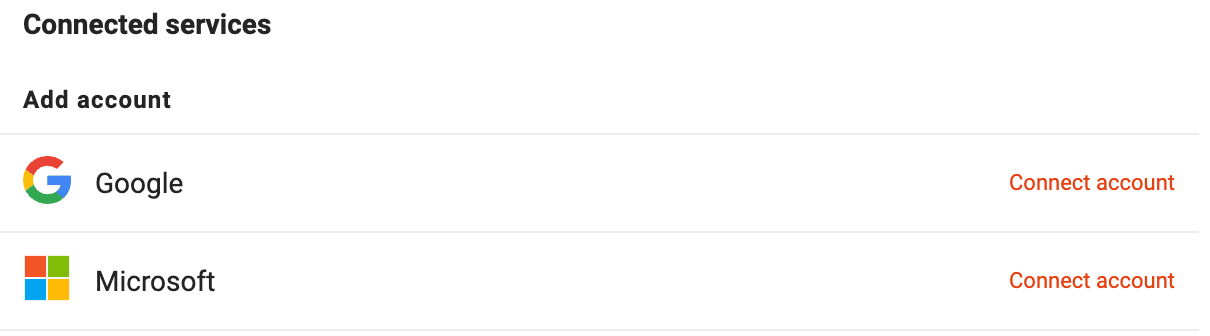 First, head to Settings > Connected services, where you can select either Google or Microsoft (depending on which account you’d like to connect with ChorusCX Flow).After choosing one of the options, you’ll be asked to sign into your Google or Microsoft account before you’re asked to return
to the ChorusCX Flow app.
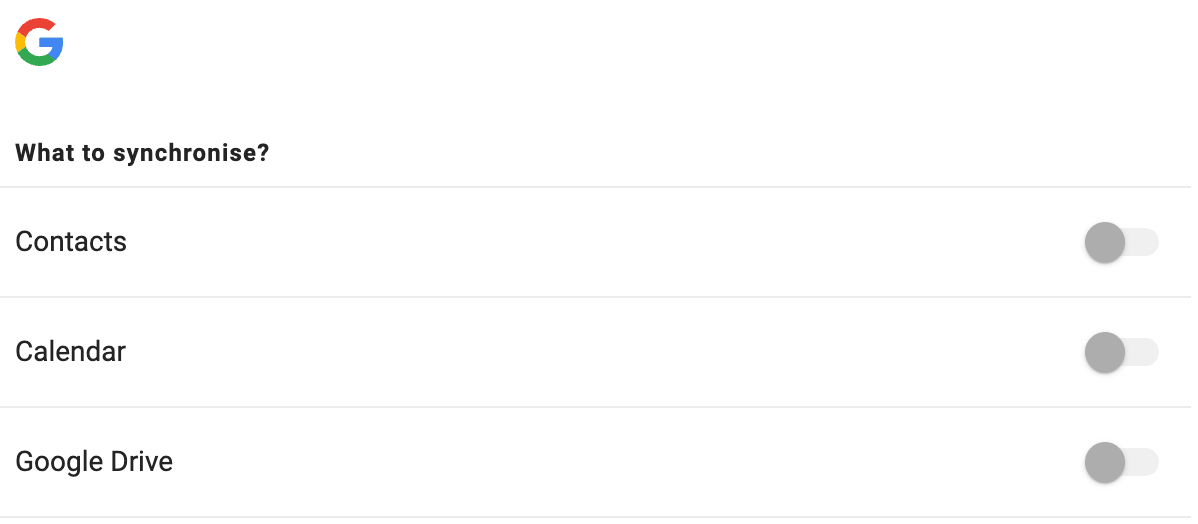
From there, you can select what you’d like to synchronise with ChorusCX Flow — your contacts, calendar, drive or all of the above.
Calendar integration
If you fancy syncing your calendar, you have a couple of options. You can ‘auto-activate’ your meetings, which means when you have a calendar event with more than one person, your account will automatically be set to ‘meeting’. This lets everyone know you’re busy — like setting your phone to ‘Do Not Disturb’. If you’d prefer to have specific profiles activated during certain calendar events, that’s no problem. Just follow these simple steps…
- Go to the profile number for the profile you want to activate: Settings > Profiles > Display profile numbers.
- Select the number presented before the profile you’d like to use.
- Go to the calendar event you wish to use your profile with.
- Write Status: [profile number] in the calendar event notes. For instance, ‘Status: 1’ for the Lunch profile or ‘Status:2’ for the Meeting profile.
- Save your changes, and you’re ready to roll!
Remember: you can write the status text before or after making the note in your calendar event — as long as the status text has an empty row before and after it.
Contacts integration
If you choose to sync your contacts from your Google or Microsoft account, they’ll be shown in your Contacts list under External contacts. The user’s name will show for numbers that match your contacts in Microsoft or Google. This makes identifying calls super quick and straightforward. After syncing your contacts, you’ll also be able to view the call history of your external contacts.
Drive integration
If you’re connecting via Google, you can also choose to sync ChorusCX Flow with your Google Drive, allowing you to easily see which documents, sheets and presentations you’ve shared with other users. To enable this handy feature, enter a chat conversation and open the Settings tab in the top right corner. If you’ve previously shared any documents with this particular person, this is where they’ll appear. With ChorusCX Flow, the options are endless — from both a partner and end-user perspective. Optimise your communication with a platform that has flexible, reliable and revolutionary solutions at its forefront. Want to learn more about our ChorusCX Flow platform? Request a demo to see how we can transform unified communications for businesses and customers.